Building Your Persistent Second Brain: An AI-Assisted Research Workflow

An AI with no memory is a stranger every session. Open a new chat, and it doesn't know your research area, doesn't know which of your three active manuscripts you mean by "the paper," doesn't know you already ruled out that experimental design two weeks ago. You end up re-briefing it from scratch, every time, which defeats most of the point of having an assistant at all.

The fix isn't a smarter model - it's persistent context the assistant can read before it does anything else. Below is a system I've been running for managing multiple research projects in parallel, built on Claude Code and Obsidian, that gives the assistant a durable memory of who you are, what you're working on, and exactly where each project stands.
One root brain that every project shares
At the top sits a single root brain: a CLAUDE.md and a GOALS.md file. This holds whatever stays true no matter which paper you're working on this week - your research area, your supervisor, your thesis timeline. It isn't built once and forgotten; it's built through a structured brain-setup interview the first time, then edited over time as your focus shifts.
Every project folder sits underneath this root and inherits it automatically. Open any project, and the assistant reads two things at once: the root file (who you are, what you're generally working toward) and that project's own file (what this specific paper needs right now). You never have to repeat your research area or supervisor's name in every project - it's stated once, at the root, and everything below it just has access to it.
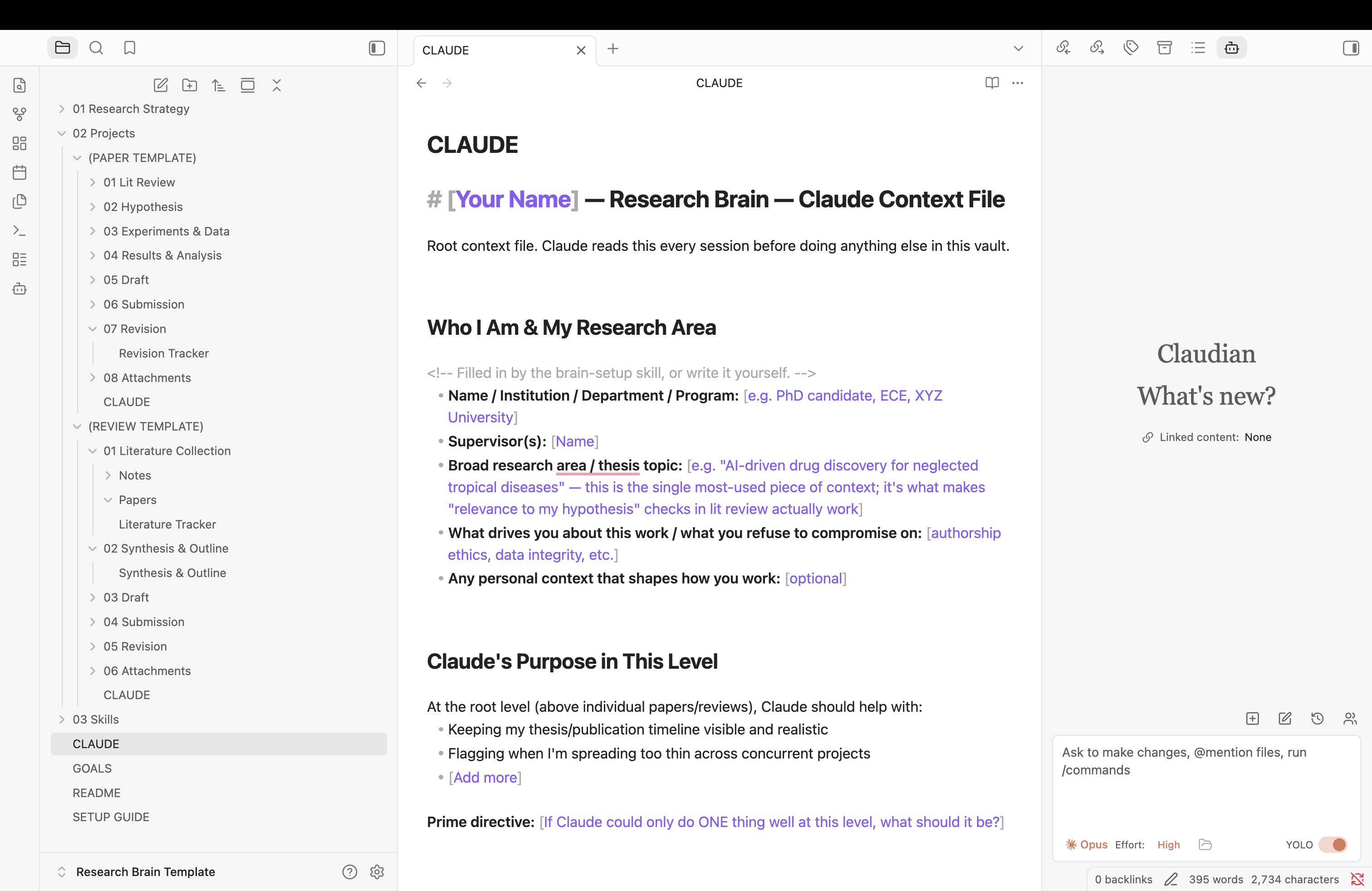
The actual root CLAUDE.md file: identity, supervisor, and thesis context, filled in once during brain-setup.
Two project types, not one generic template
A research paper and a review paper don't move through the same stages, so forcing them into one generic template means either missing stages one type needs or cluttering the other with irrelevant ones. Instead, there are two templates:
- Research Paper: Lit Review → Hypothesis → Experiments & Data → Results & Analysis → Draft → Submission → Revision
- Review Paper: Literature Collection → Synthesis & Outline → Draft → Submission → Revision
Each project's own CLAUDE.md names its current stage explicitly. That one line is what lets a session pick up exactly where the last one left off, instead of the assistant guessing from context clues or asking you to re-explain.
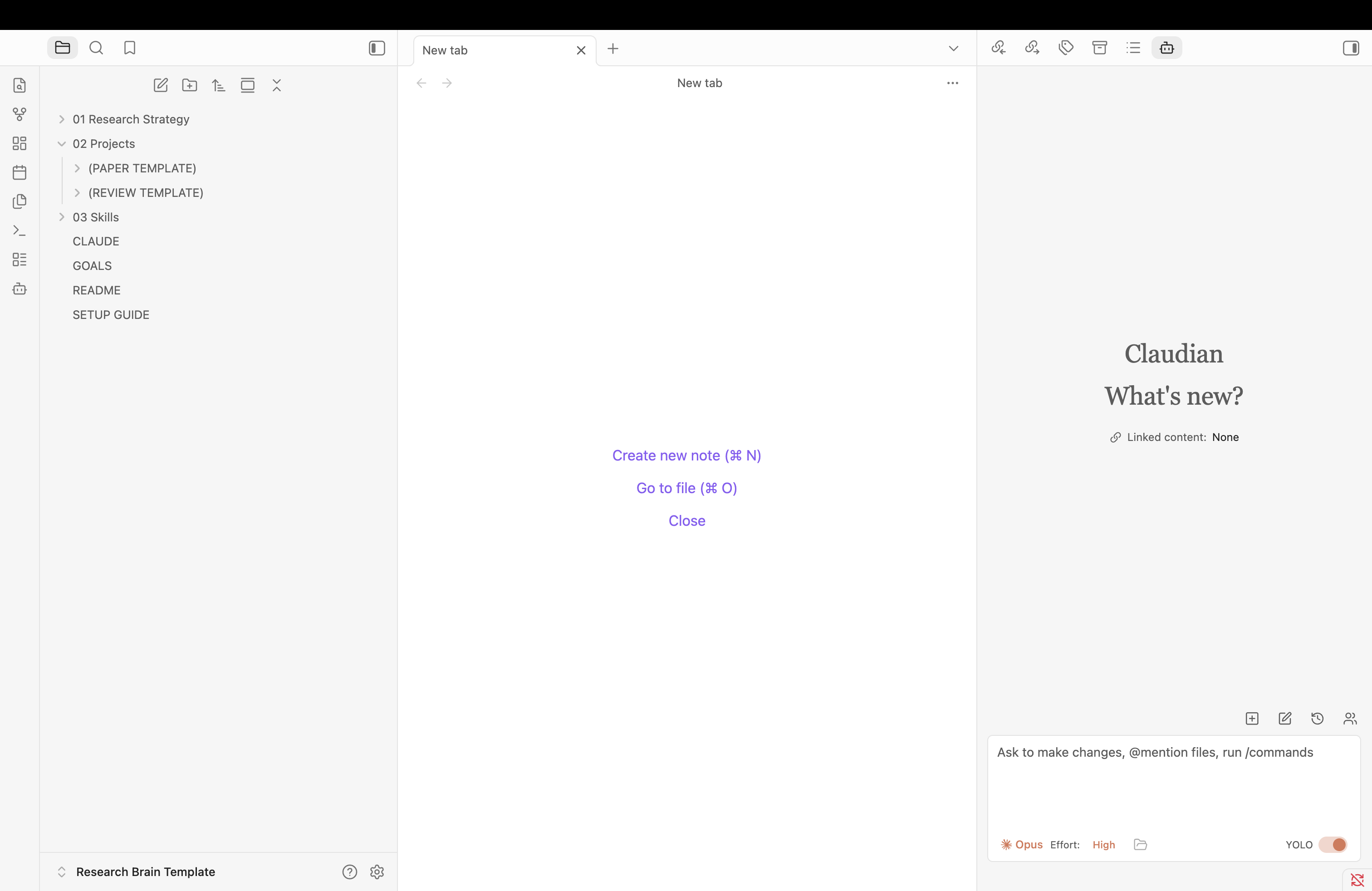
Inside 02 Projects: a Paper Template and a Review Template, each with its own stage folders.
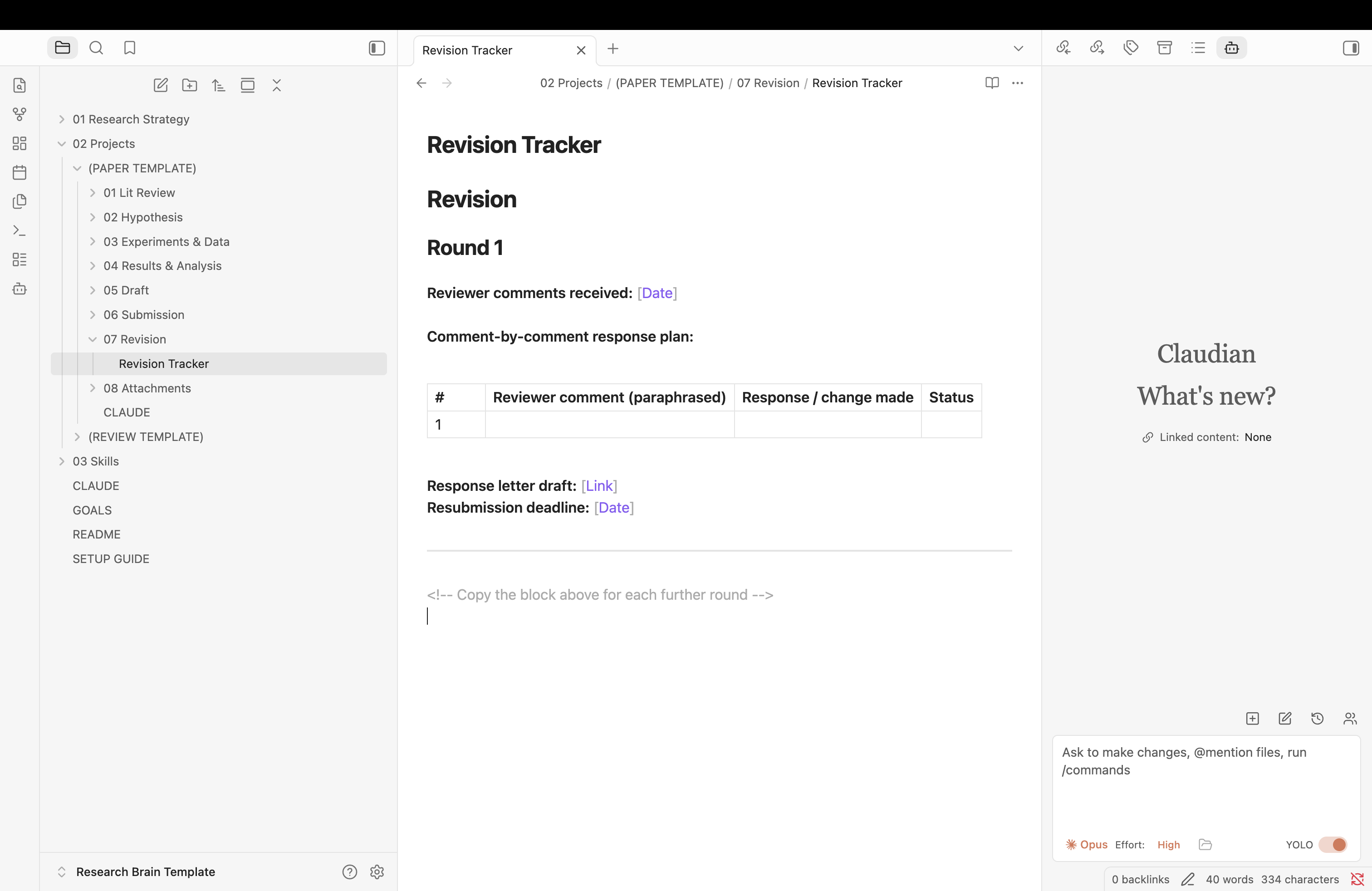
One stage opened up: the Revision Tracker inside 07 Revision, logging reviewer comments round by round.
The literature pipeline
Reading papers generates the most friction in any research workflow, so this is the most mechanical part of the system by design:
Literature flow
1. Download paper
2. Rename: FirstAuthor_Year_ShortTopic.pdf
3. Run the summarize-paper skill
4. Skill writes a fixed-shape note:
   - Question
   - Method
   - Result
   - Relevance to hypothesis
   - Gaps
   - Takeaway
5. Note auto-appends a row to Literature Tracker.md
The fixed shape matters more than it looks. A free-form summary is pleasant to read once and useless to search six months later when you're trying to remember which of forty papers actually addressed your specific gap. A fixed shape means every note answers the same questions in the same order, so Literature Tracker.md becomes a genuinely queryable table instead of a pile of loosely related notes.
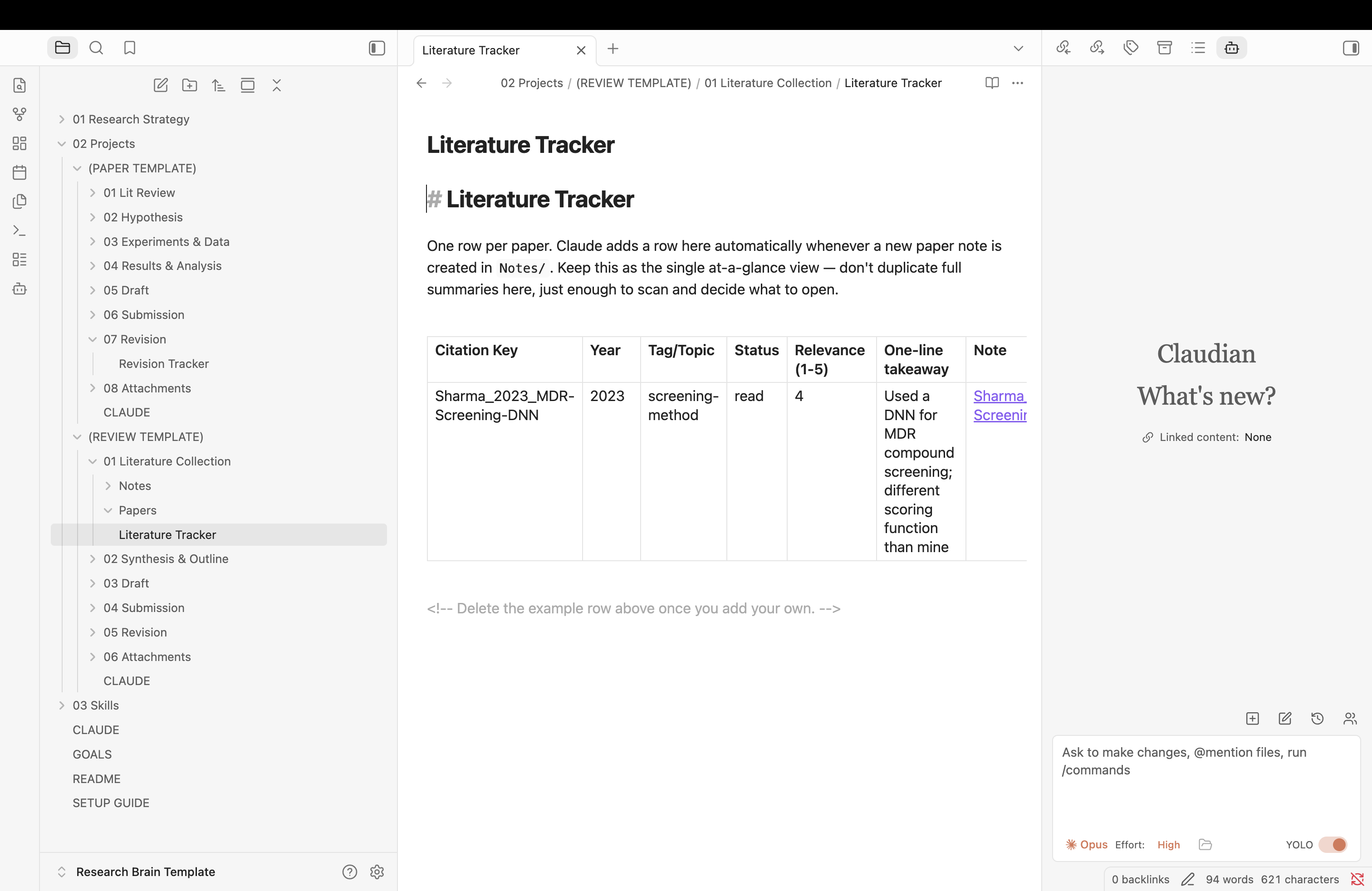
Literature Tracker.md after the summarize-paper skill runs: one row per paper, added automatically.
The manuscript stays tool-agnostic
The vault deliberately does not try to become your writing environment. It holds a pointer to wherever the manuscript actually lives, a version log, and an outline - nothing more. The writing itself happens in Overleaf, Word, or whatever you already use. This is a deliberate boundary: a knowledge-management system that tries to also be your LaTeX editor ends up doing both jobs poorly. Keeping them separate means you can adopt this system without changing how you actually write.
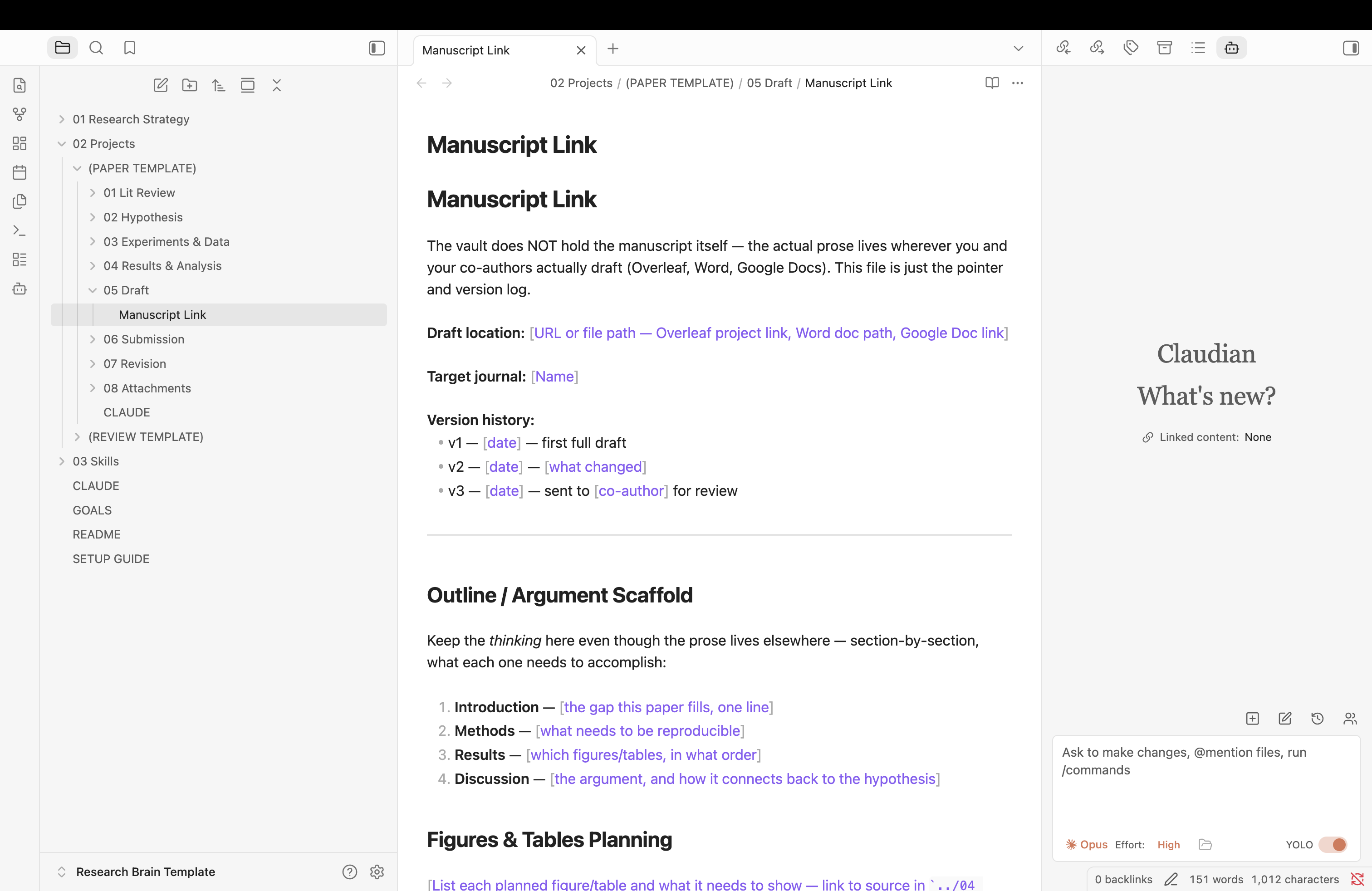
The Manuscript Link file inside 05 Draft: a pointer and version log, not the manuscript itself.
Four focused skills instead of one do-everything assistant
The system runs on four narrow, reusable skills, each triggered on demand rather than one large assistant configuration trying to handle every task at once:
- brain-setup - the structured interview that builds the root
CLAUDE.mdandGOALS.mdthe first time you set this up. - new-project - scaffolds a new project folder from the Research Paper or Review Paper template, with its own stage-tracking
CLAUDE.md. - summarize-paper - runs the literature pipeline above: reads a downloaded PDF and produces the fixed-shape note plus the tracker row.
- weekly-update - reviews what changed across active projects and surfaces a short status summary, so you can see progress (or the lack of it) at a glance.
Setting it up
Here's the destination before the steps to get there - the Research Brain Template vault open in Obsidian, with the folder structure on the left (Research Strategy, Projects, Skills, and the root CLAUDE.md/GOALS.md/README/Setup Guide files) and the Claudian panel activated on the right, ready to take instructions:
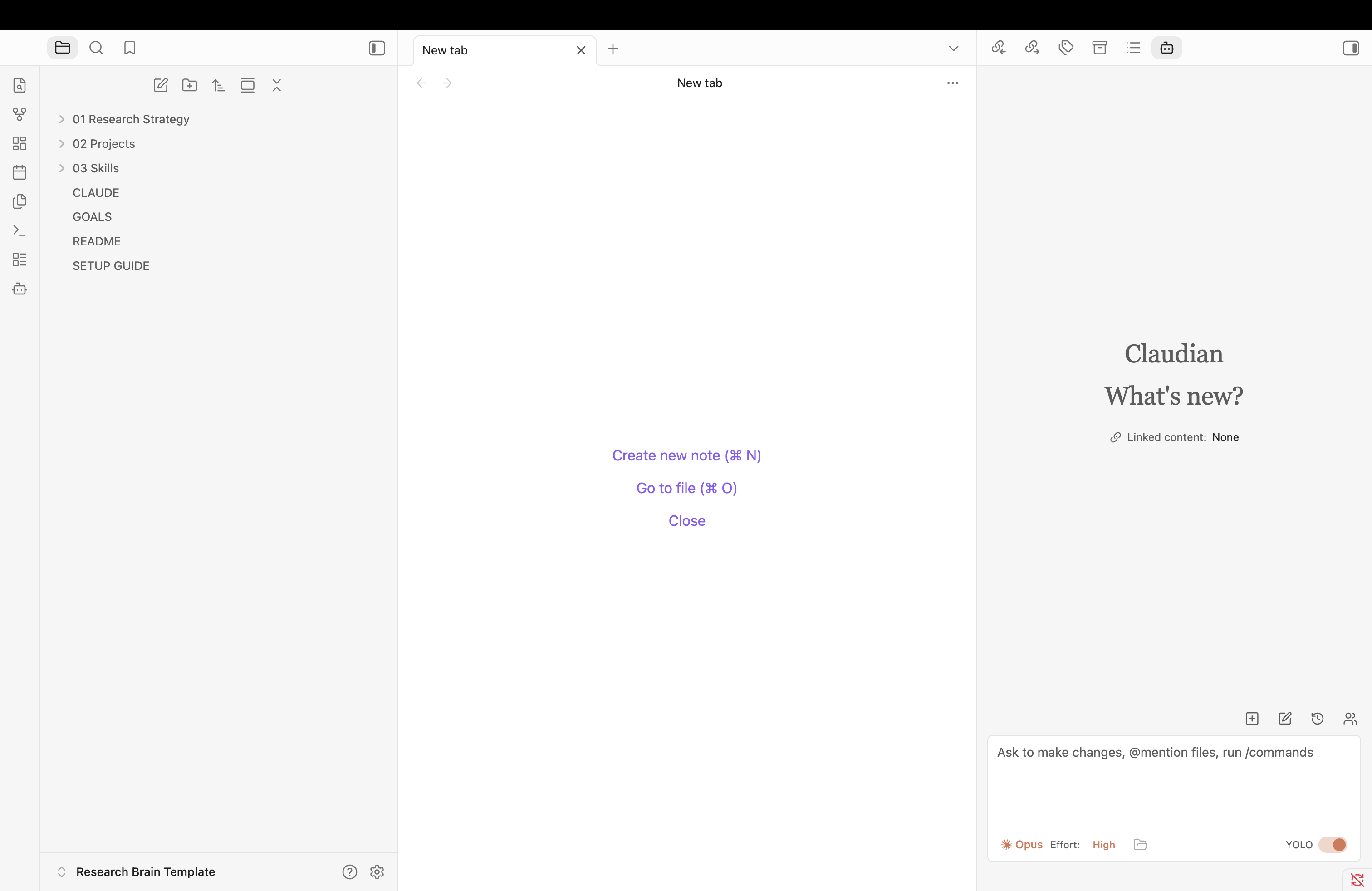
Claude Code installs Obsidian and the Claudian plugin, and the vault opens directly in Obsidian. On first use, activate Claudian with Ctrl/Cmd+P. From there, the brain-setup interview walks you through building the root files, and every subsequent project starts with new-project rather than a blank folder.
1. Open a terminal
Command Prompt on Windows, Terminal on Mac.
2. Install Claude Code
Windows:
curl -fsSL https://claude.ai/install.cmd -o install.cmd && install.cmd && del install.cmdMac:
curl -fsSL https://claude.ai/install.sh | bash3. Log in
Run claude and follow the browser login prompt.
- Ask Claude Code to install Obsidian for you.
- Ask Claude Code to install the Claudian plugin from github.com/YishenTu/claudian into the vault's
.obsidian/pluginsfolder. - Open the Research Brain Template folder in Obsidian as a vault ("Open folder as vault").
- Go to Settings → Community Plugins, confirm Claudian is listed and toggled on.
- Press Ctrl+P (Windows) or Cmd+P (Mac) to open the Command Palette and trigger Claudian for the first time.
- Run
brain-setupto build the root brain, then start the first project withnew-project.
Since this all runs through Claude Code, none of these steps are fixed in stone - you can ask it to adjust the setup, rename things, or reorganize the vault structure to fit how you actually work.


The payoff isn't a fancier assistant - it's the same assistant, minus the constant re-briefing. A well-kept second brain means every session starts from where you actually are in the project, not from zero.
Get the template
The root brain structure, both project templates, and the four skills described above are available as a ready-to-use Obsidian vault template.
If you're setting up a similar workflow for your own research group or want to talk through adapting this for a specific field, get in touch.